
Large Format Scanner – Understanding DPI, Capture Area, & File Formats
For most large format scanner settings, 300 to 400 DPI is the right resolution. Your capture area depends on the type of scanner you have. PDF, JPEG, and TIFF are the file formats that actually matter. Everything else is noise.
At Steven Enterprises, we work with architects, engineers, contractors, and print shops who need to digitize large format documents every day.
The questions we get most often come down to three things: how much resolution do you actually need, what your scanner can physically capture, and which file format you should save in.
This guide answers all three, without the fluff you’ll find out there.
DPI for Large Format Scanning: What You Actually Need

Scan at 300 to 400 DPI. That is the sweet spot for large format scanner settings, and going higher creates more problems than it solves.
DPI stands for dots per inch, and in scanning, it measures how much detail the scanner captures per inch of the original document. A higher DPI means more detail, but it also means a much larger file.
At 1,200 DPI, a single large format scan can produce a file so large it becomes nearly impossible to send, store, or work with. Most workflows, software applications, and email systems simply cannot handle it.
At 300 to 400 DPI, you get a clean, sharp scan of a blueprint, architectural drawing, or engineering document that is still manageable in size and easy to share digitally.
For the vast majority of large format scanning, 300 DPI is sufficient. If you are scanning detailed artwork or documents where fine lines really matter, 400 DPI gives you added clarity without blowing up your file size.
The 1,200 DPI option is available on most machines, but in practice, very few people use it in standard document workflows. Save that setting for specialized archival work where file size is not a constraint.
Capture Area: What Your Scanner Can Actually Handle

Your capture area depends entirely on which type of scanner you have, not on your document.
There are two main categories of large format scanners, and they handle capture area very differently.
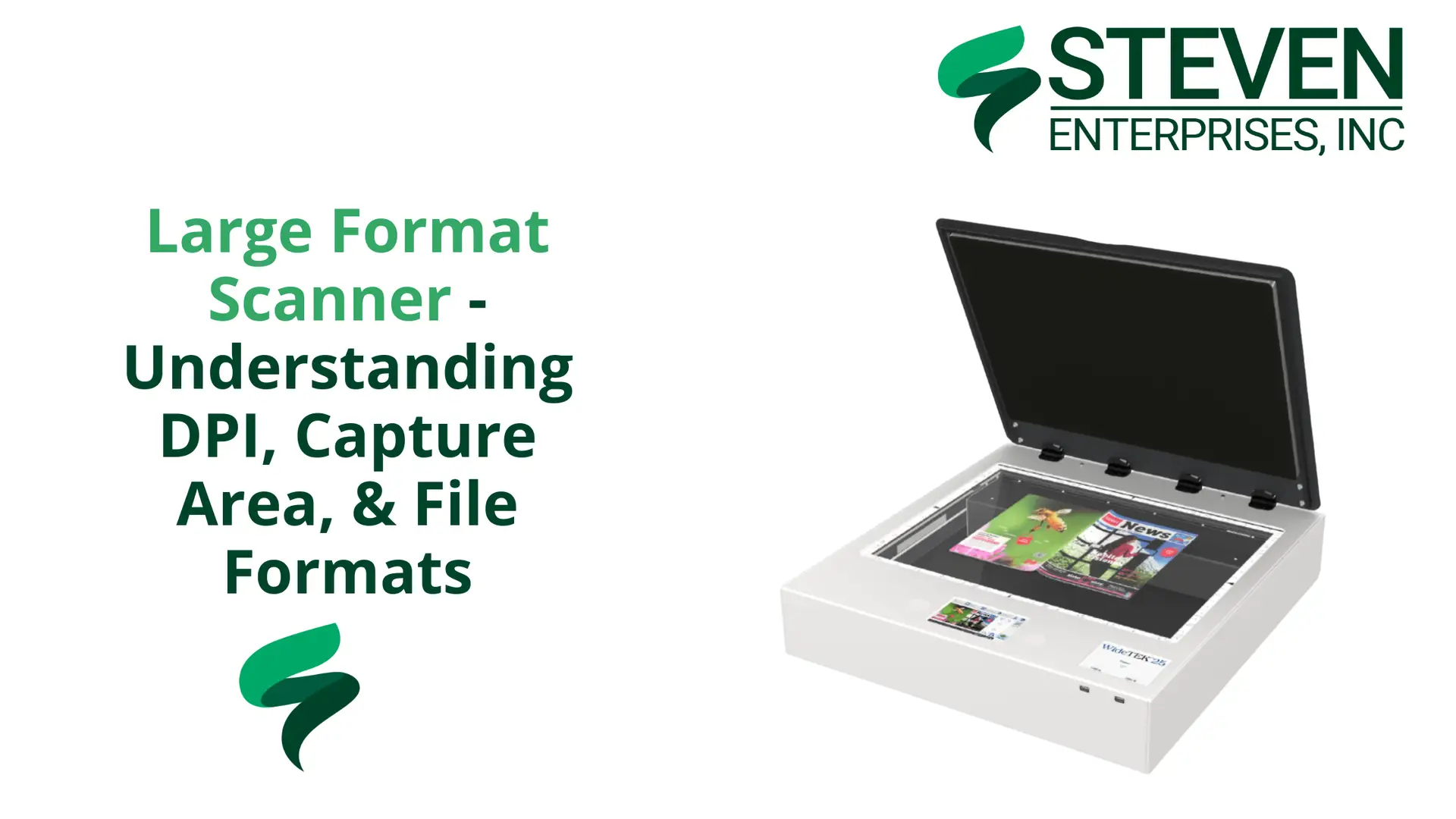
- Flatbed scanners have a fixed glass bed. A 44-inch flatbed can scan the entire 44-inch width in a single pass, giving you a true full-size capture of whatever fits on the glass. These are well-suited for artwork, mounted documents, and anything that needs to lie completely flat.
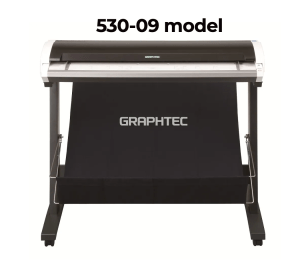
- Standalone roll-fed scanners work differently. These pull the document through the machine on a feed roller. Depending on the model, standalone large format scanners typically handle widths between 24 and 60 inches. The most common configurations you will see in offices and print shops are 36-inch- and 44-inch-wide models.
Most large format scanning in professional environments involves blueprints, architectural drawings, engineering documents, old maps, and large artwork that needs to be digitized.
These documents are getting scanned because everything is moving toward digital workflows, and physical copies need to become searchable, shareable files.
If you are regularly scanning oversized or mounted materials, a flatbed is the better fit.
If your work is primarily roll plans, blueprints, and technical drawings, a standalone roll-fed scanner handles it faster and more efficiently.
Steven Enterprises carries a full range of wide format scanners, including models from HP, ROWE, Contex, Colortrac, and Graphtec.
Not sure which type fits your workflow? That is exactly the kind of question we help answer before you buy.
The Three File Formats That Actually Matter
PDF, JPEG, and TIFF cover almost every large format scanner settings need. EPS and SVG are rarely used in scanning workflows.
- PDF is the industry standard for large format document scanning. It preserves vector graphics and text sharpness, works across every platform, and is the format most clients, contractors, and collaborators expect to receive. If you are scanning blueprints or technical drawings for sharing or submission, PDF is almost always the right choice.
- TIFF is the best option when image quality is the top priority. It uses lossless compression, meaning no quality is lost in saving, but the files are large. TIFF works well for archiving original documents or scanning high-detail artwork where you cannot afford any degradation.
- JPEG is fine for high-resolution photographic content. The trade-off is that JPEG uses lossy compression, which can introduce artifacts, particularly around sharp lines and text. For blueprints or technical drawings, PDF or TIFF will serve you better. For scanning photographic prints or artwork where some compression is acceptable, JPEG is workable.
Note: EPS is a format you may see mentioned in scanner spec sheets, but in practice, it is rarely used in large format scanning workflows. It is primarily a design and print production format for vector logos and graphics, not a standard output for document scanning.
One important setting, regardless of format: always scan or convert your files to CMYK color mode if the output is going to be printed.
CMYK is the color space used by printers. Scanning in RGB and then printing can cause color shifts that affect the accuracy of your output.
Choose the Right Scanner for Your Workflow with Us
Getting the settings right is only part of the equation. The scanner itself needs to match what you are digitizing.
A machine that is too narrow, too slow, or missing the right software integration will slow you down regardless of how well you dial in the resolution and file format.
Our team will work with you to match you to the right machine based on your document types, scan volume, and the software you already use.
Call us at 800-491-8785 or reach out here, and we will walk you through the options.